


Form input autocomplete is a way to let devices know what kind of information the input is asking for so it can make appropriate suggestions. This makes for a better user experience and helps make forms easier to fill out.
It’s something that will often be left out of form plugins, so it’s something you’ll want to specifically check for when choosing where you’ll be building your forms.
This isn’t going to be a full breakdown on autocomplete or show a full list of autocomplete values. The Mozilla documentation does an excellent job of that, and it’s a great place to refer to for the more advanced implementations of autocomplete.
Why autocomplete matters
Inputs don’t have anything to tell browsers what type of information should go in a field, even if it’s a specific type of input like email or tel. So there’s something called the autocomplete attribute that lets us add that feature for the common types of information.
How to use autocomplete
The most common input types you’ll use autocomplete values on are:
- text
- tel
- textarea
- select
So for example, if you have a text input that asks for someone’s first name for your subscription form, it would look something like this:
<input name="firstName" id="firstName" type="text" autocomplete="given-name" />
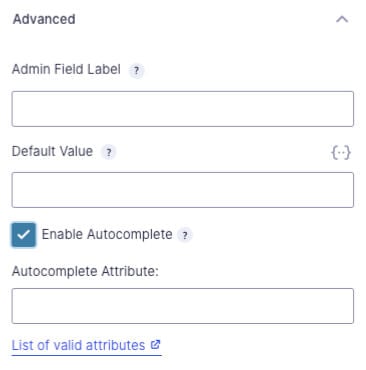
In Gravity Forms, you’ll look for the “Advanced” area, check the box for “Enable Autocomplete” and then enter the value, in this case “given-name.”
This may look different depending on the field type you add, but the process is the same.
Common autocomplete values
There’s a long list of values, but there’s a core group that you’re going to be dealing with most often:
- name (full name)
- given-name (first name)
- family-name (last name)
- tel
- organization (company name)
- organization-title (job title)
There are also values for addresses, in case that’s something you find yourself asking for. The meaning of these values might be slightly different depending on the country the address is for:
- street-address (the full address in one field)
- address-line1 (first line of the address, usually building number and street name)
- address-line2 (usually where apartments or unit numbers go)
- address-level2 (city)
- address-level1 (state)
- postal-code (zip code)
Tips for autocomplete
It’s important to choose the right value to prevent incorrect or invalid suggestions. You’ll also want to make sure you’re pairing this with the right input type. They do two different things, so you will need to add the email autocomplete to an email field.
This is because not every field that asks for that type of information actually needs the autocomplete. You use autocomplete for gathering information about only the person filling out the form.
For example, if it’s a form asking someone to enter a recipient’s email or address, you wouldn’t want to have the autocomplete suggest their own information.
Using autocomplete values is a quick step you can take to make your forms more user-friendly and more accessible.
