

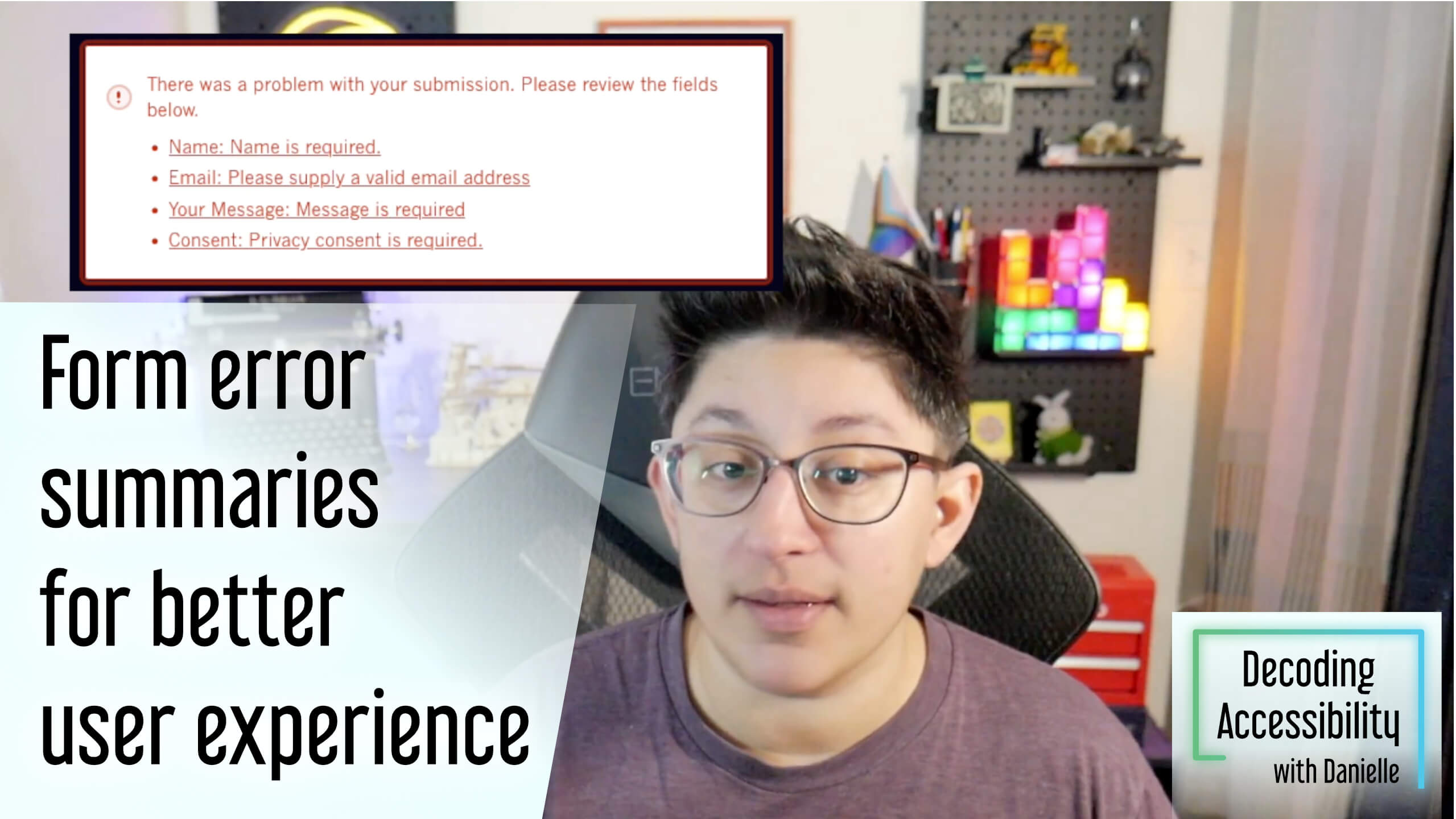
Effective form errors play a huge part in overall form usability and accessibility. Once you get someone to want to contact you, it’s important to make sure they can complete that process with as little friction as possible.
But one of the most helpful aspects of creating accessible forms is also one that I don’t see mentioned enough: error summaries.
And with so many form plugins and solutions available for WordPress, it’s surprising that the only accessible form solution that offers accessible error summaries I’ve found is Gravity Forms.
Check out the video on YouTube or the audio on the podcast.
What are error summaries?
An error summary is a group of elements that appear above a form that has been submitted with errors. It includes a heading, a list of all the inputs, their errors, and a link to jump directly to that field.
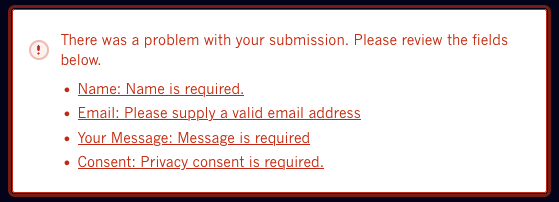
It’s a really helpful way to provide someone with a way to understand what they need to fix and can get directly to the fields they need to return to without having to hunt and scroll through the whole form again.
How to use error summaries.
The best way to use an error summary is in addition to showing an error message directly under fields with errors, especially since we usually use this method for longer forms that would cause someone to scroll or tab back and forth to try to remember what all the errors were.
The container of the summary should have role="alert" (or possibly aria-live="assertive") if the page doesn’t reload. And instead of setting focus to the first field with an error, the focus should move to this container.
Include a short, clear and distinctive heading inside the summary like “There were 3 errors in this form,” “Please correct the following errors,” or “There were problems with submitting the form.”
Then put the errors in a list tag. For each error, reference the input label with a concise description, how to fix the mistake, and a link to the input. This should mirror the label and error that’s in the form.
An error summary only shows up after a form has been submitted. It doesn’t show up as someone is filling out the form. That’s considered “inline validation” and has its own set of requirements.
When to use error summaries.
Error summaries are a great way to let someone decide how they want to fix errors after they’ve submitted the form. And it’s something easily ignored or skipped if someone doesn’t want or need it.
They’re good for when there are more than a few fields that are required or have some other kind of specifications, but not so many errors that it would be overwhelming to have to fix dozens of errors. If you’re using the error summary, you’d be showing it for that form no matter how many errors there are.
You can absolutely use error summaries when you only have a few fields, but it’s often not necessary to add the additional noise. And for those long forms, that might be a good case for validating after someone leaves the input.
Choose the method that makes the most sense for that particular form.
